 Baby Mode
Baby grabbed your phone? Just say "Lock into Baby Mode."
Get the full app free for a very limited time! $12.99 at launch
Finally, a way to intercept those tiny fingers that tap into trouble. Activate it by voice - in two seconds flat.
Tap, drag and pop. Turn your sound on!*
*Haptics and sounds can be turned off anytime.
needed
Let them have it. Safely.
Take it away and there are tears. Let them have it and there's chaos. Baby Mode is the third option: they get something calm and fun, and your phone stays safe.
Uh oh.
You're halfway through paying the rent, and tiny hands grab your phone.
Hands-free, because you don't want to grab it back mid-diaper change. If your hands are clean you can also press your Action Button.
Phew.
Two seconds later it's bubbles and shapes, locked tight. They play, and your money stays put.
From "uh oh" to locked, without lifting a finger.
Baby Mode locks your phone to a playful lock screen with a voice command, so you don't have to wrestle it back first.
- They grab itMid-scroll, mid-text, mid-photo. Little hands are fast.
- You say "Lock into Baby Mode"From across the room, hands full. Or press your Action Button.
- It opens and locksGuided Access keeps them on the Baby Mode lock screen until you unlock it with your passcode or Face ID.Locked • triple-click to unlockWhen it locks, the o in Baby Mode clicks shut into a padlock and this green pill pops up.
Every tap pops, chimes and sparkles.
Screens to distract and calm baby. AKA this app buys you a minute when you need it most. (Like during diaper changes)
Light
Soap bubbles that drift up, pop with a chime and follow a swipe.
Mod
Bold shapes in bright colors that bounce and burst into confetti.
Dark
Soft glowing lights on a night sky, gentle enough for bedtime.

Faces
Peekaboo with family. Tap the smiley to find Mama and hear her say hello.
Peekaboo with the people they love.
Add Mama, Dada, Nana or anyone else. Their faces hide behind smiley circles, and when your baby taps one, the face pops out and says hello in their own voice.
- Snap a selfieOr pick any photo. Baby Mode finds the face for you.
- Get a color popThe person is cut out and set on a bright, happy color.
- Record a helloUp to 4 seconds. "Peekaboo! I love you!" works great.
Simple & Safe.
No way out
Once Guided Access is on, the home swipe, notifications and your other apps are off limits until you unlock it.
Grown-up buttons
Menus open with a 2 second hold. If a baby does find one, they still stay safely inside the app.
Feels like a toy
Gentle vibrations with every pop, and chimes that play even when your phone is on silent. Both can be turned off anytime.
No ads, no links
Nothing pops up, nothing to tap into, no accounts. Just bubbles, shapes and smiles.
Works anywhere
No Wi‑Fi or data needed. Perfect for waiting rooms, flights and the grocery line.
iPhone and iPad
Big, bright circles that scale up beautifully on a bigger screen.
Set it up once. Lock it anytime.
No app can lock your phone on its own. Apple only allows it through Guided Access, which is built into every iPhone and iPad. Follow these in order and you'll be able to lock with your voice.
- 1Download
- 2Guided Access
- 3Passcode
- 4Triple-click
- 5Baby Lock
- 6Voice Control
- 7Your command
- 8Options
- 9Lock screen
-
1
Download Baby Mode
Get Baby Mode from the App Store on your iPhone or iPad. It's free to download.
 Coming soon. Join the waitlist to get it free at launch.
-
2
Turn on Guided Access
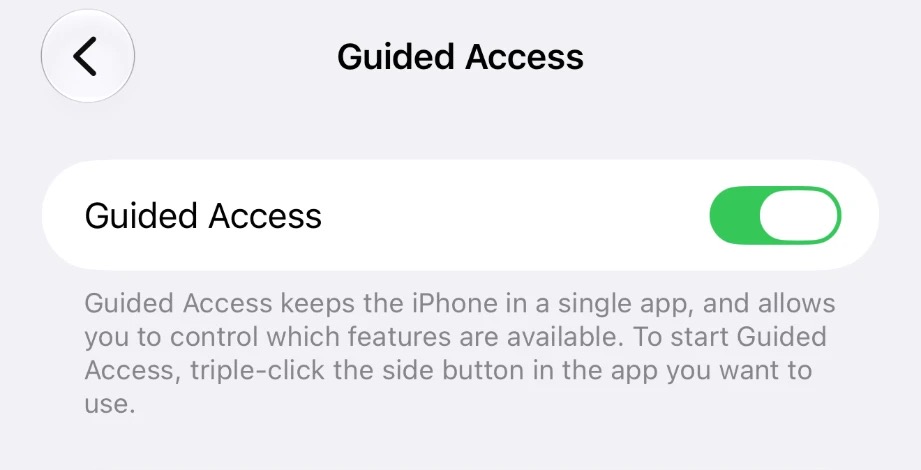
Settings → Accessibility → Guided Access → turn it on.
This is Apple's built-in lock. It keeps the phone on one app until you unlock it, and hides notifications while it's on.
-
3
Set your passcode and keep the screen awake
Still in Guided Access:
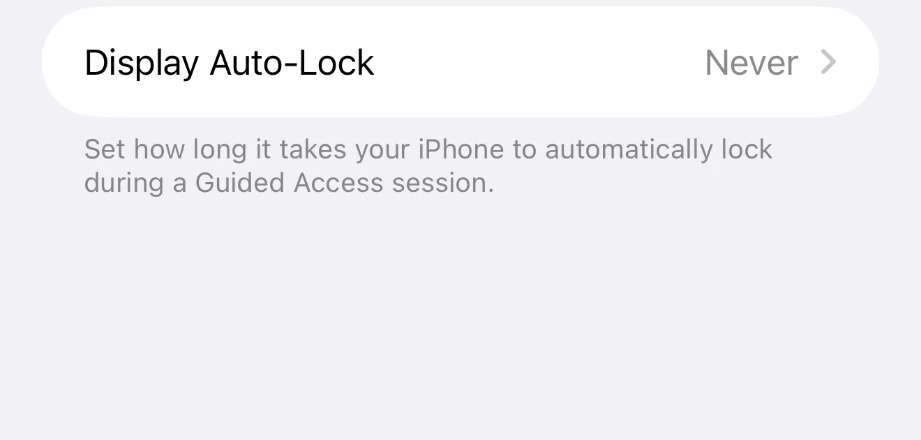
- Passcode Settings → Set Guided Access Passcode, and turn on Face ID.
- Display Auto-Lock → Never.
Pick a code your kids don't know. "Never" keeps the screen from going dark mid-play. It only applies while Baby Mode is locked.
-
4
Make triple-click go straight to the lock
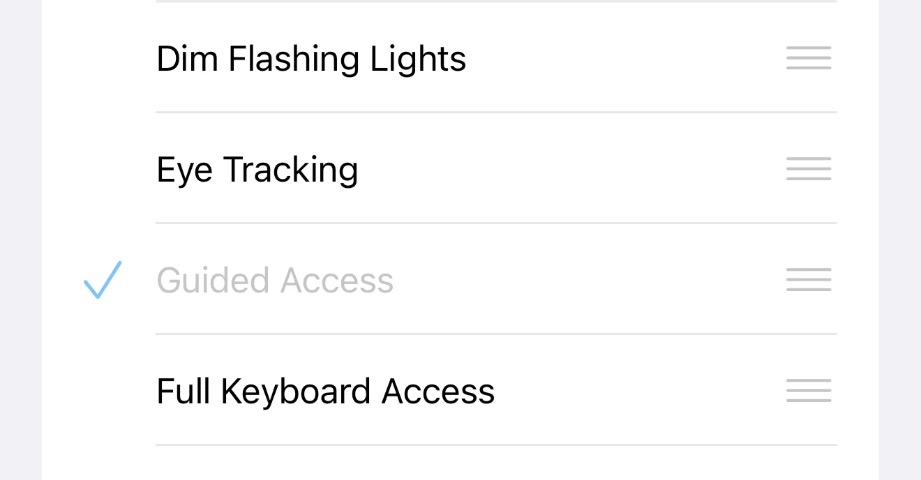
Settings → Accessibility → Accessibility Shortcut → make sure only Guided Access has a check mark.
If anything else is checked, triple-click shows a menu instead of unlocking.
-
5
Add the Baby Lock shortcut
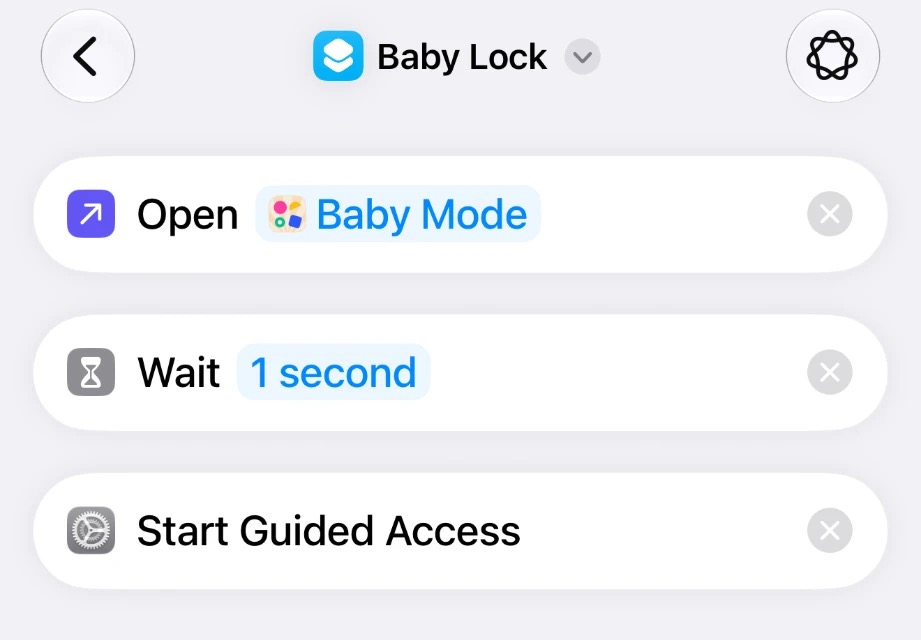
On your iPhone, tap the button below, then tap Add Shortcut. It opens Baby Mode and starts Guided Access.
Or build it yourself
Open the Shortcuts app, tap + and add these three actions in order:
- Open App → Baby Mode
- Wait → 1 second
- Start Guided Access
Name it Baby Lock, exactly.
Tap ▶ on the shortcut once to test it, and allow anything it asks.
-
6
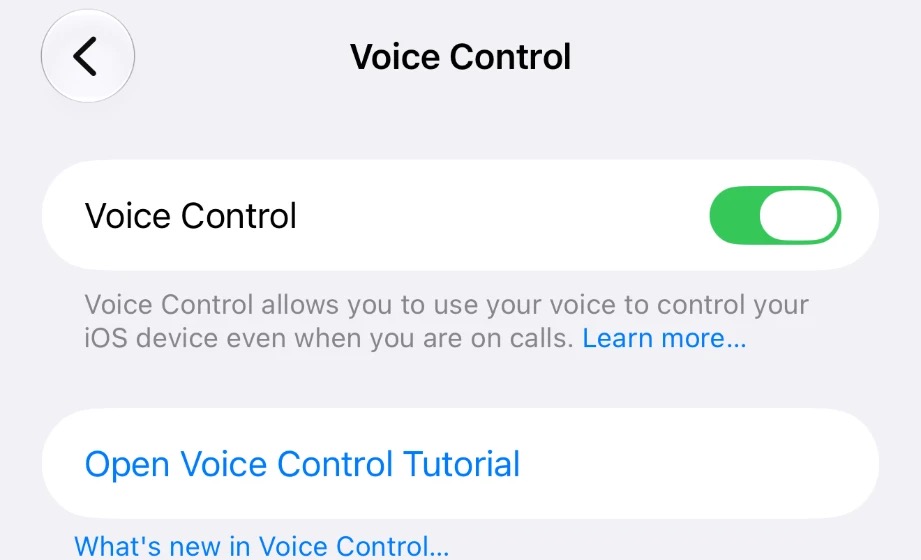
Turn on Voice Control
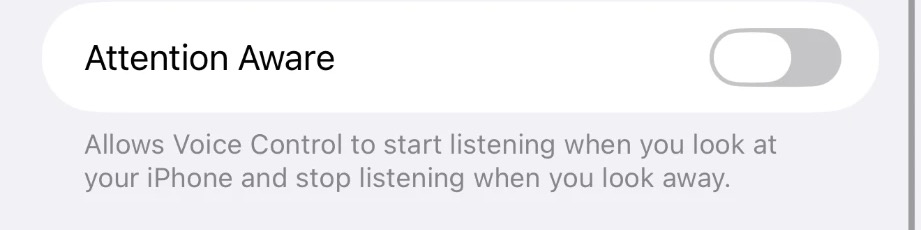
Settings → Accessibility → Voice Control → turn it on. Further down that page, keep Attention Aware off.
The first time, your iPhone downloads a voice file, so stay on Wi‑Fi for a minute. Attention Aware stops listening when you look away, which is exactly when you'll need it.
-
7
Add your "Lock into Baby Mode" command
In Voice Control, tap Commands → Create New Command:
- Phrase: Lock into Baby Mode
- Action: Run Shortcut → Baby Lock
- Application: Any
Before you tap Save, check that Action says Baby Lock. If it says "(null)", pick the shortcut again.
-
8
Check the lock's options once
Open Baby Mode and triple-click the side button. Tap Options in the corner and set:
- Touch: on, so little fingers can play
- Side Button: off
- Volume Buttons: on, if you want to change the volume while it's locked
- Time Limit: off
Tap Done, then Start. Triple-click again and use your passcode to end it. Your iPhone remembers these options for next time.
-
9
Babyproof your lock screen too
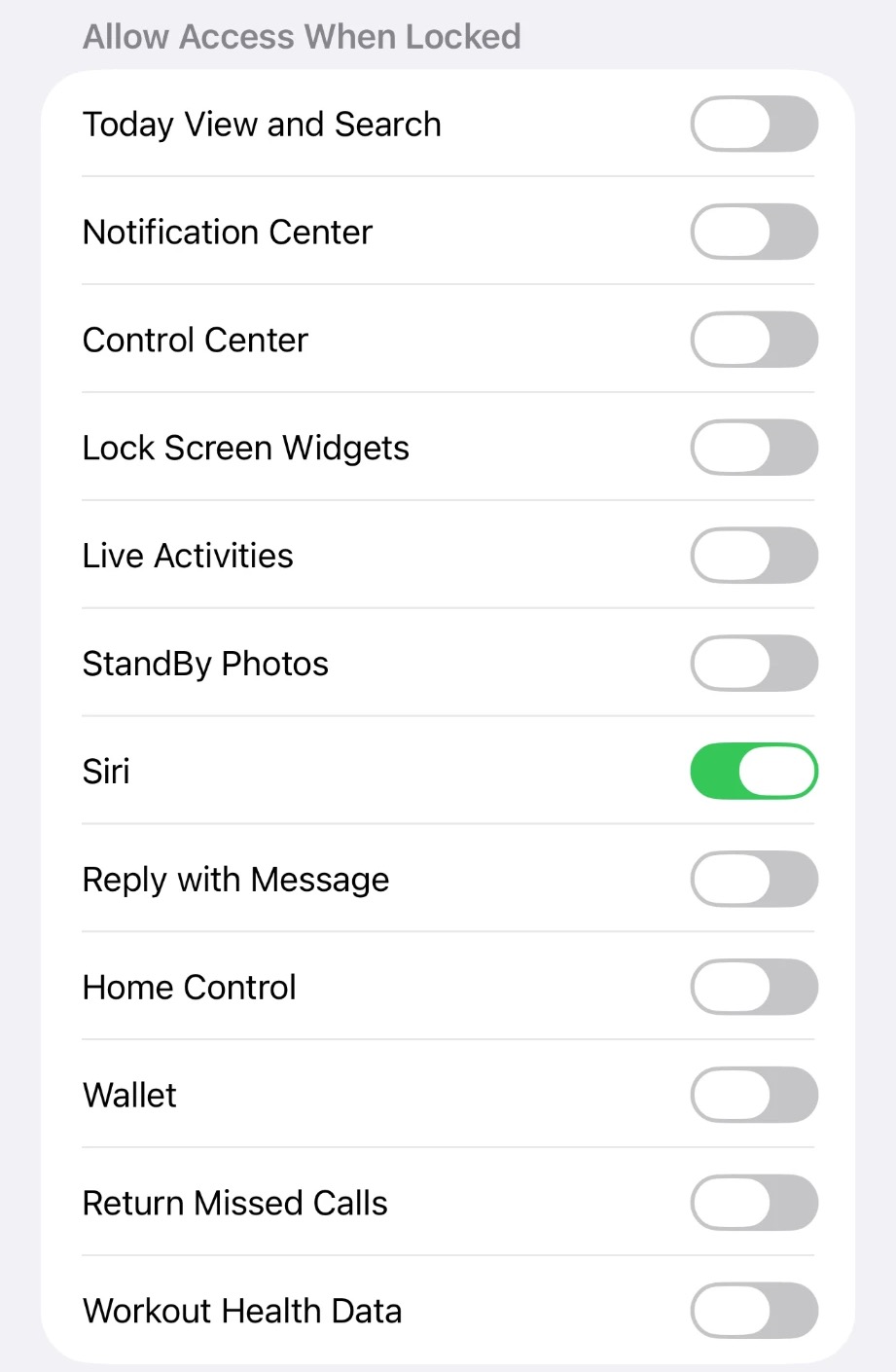
Settings → Face ID & Passcode → scroll to Allow Access When Locked and turn off everything little fingers could get into: Today View, Notification Center, Control Center, Lock Screen Widgets, Live Activities, StandBy Photos, Reply with Message, Home Control, Wallet and Return Missed Calls. Keep Siri on if you use it.
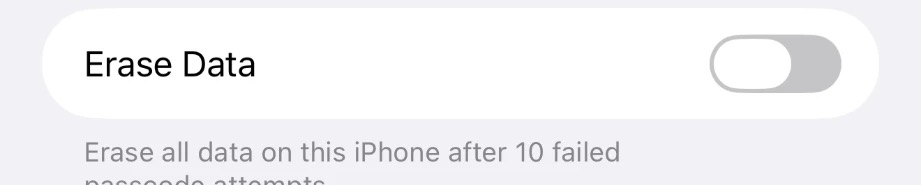
Just below, make sure Erase Data is off.
Now even when your phone is locked, there's nothing to tap into. And a determined toddler can't wipe your phone by guessing the passcode 10 times.
Now try it
Open any app and say "Lock into Baby Mode." Baby Mode opens, the o in "mode" clicks shut into a padlock, and you'll see Locked at the top. To unlock, triple-click the side button and use your passcode or Face ID.
Good to know
- What if my phone is locked? Your iPhone has to be unlocked for Baby Mode to open, and Face ID only unlocks for your face, from about arm's length (roughly 10 to 20 inches). So from across the room, or with your baby holding it, a locked phone can't open Baby Mode. That's where step 9 comes in: it makes your lock screen babyproof too. To keep your phone unlocked more often, a few settings help:
- Stay unlocked longer. Settings → Display & Brightness → Auto-Lock → 5 minutes. Your phone is more likely to still be unlocked when they grab it. Uses a bit more battery.
- Unlock without looking right at it. Settings → Face ID & Passcode → turn off Require Attention for Face ID. Handy when you're close but busy, like mid-diaper change. A little less secure.
- No passcode. Then the command works even when your phone is locked, from anywhere in the room. But anyone can open your phone, and it turns off Face ID and Apple Pay, so we don't recommend it.
- Voice Control listens all the time and uses a little more battery. If its hint bubbles get in the way, turn off Show Hints in Voice Control.
- Prefer a button too? Settings → Action Button → Shortcut → Baby Lock. No Action Button? Settings → Accessibility → Touch → Back Tap → Double Tap → Baby Lock.
- You can also tap the padlock in "mode" on the Baby Mode home screen to lock.
- Want to play with it yourself? Guided Access turns on by default when you say the command. To skip it, remove Start Guided Access from your Baby Lock shortcut, or just open Baby Mode from its icon. Then you can fidget and hop between apps. Grown-ups love popping bubbles too.
- Works on iPhone and iPad with iOS 17 or newer.
Free to try. $12.99 for everything.
No subscriptions, no ads. And waitlist families get the full app free at launch.
Baby Mode
- The "Lock into Baby Mode" voice lock
- The padlock that shows when you're locked
- The Light bubbles lock screen
- No ads, no accounts
The full app
- The "Lock into Baby Mode" voice lock
- The padlock that shows when you're locked
- The Light bubbles lock screen
- No ads, no accounts
- Mod, Dark and Faces lock screens
- Family faces with their own voice hellos
- Every new lock screen we add
Questions
Do I have to say "Hey Siri"?
No. Baby Mode uses Voice Control, which is built into your iPhone and listens for your own command. Just say "Lock into Baby Mode."
Can I use it without the lock?
Yes. When you say "Lock into Baby Mode", Guided Access turns on by default so little fingers can't get out. If you'd rather skip the lock, so you can hop between apps or fidget with it yourself, open your Baby Lock shortcut and remove the Start Guided Access step. The command will then just open Baby Mode. Opening it from its icon never locks either. Already locked? Triple-click the side button to unlock and keep playing.
Can my baby really not get out?
With Guided Access on, the home swipe, Control Center and notifications are switched off, and you can turn off the side buttons too. Only someone with your passcode (or Face ID) can end it. Without Guided Access, Baby Mode is still a fun toy, but a swipe up will take them out.
Why do I have to change settings?
Apple doesn't let any app lock your phone by itself. Guided Access is Apple's own built-in lock, the Baby Lock shortcut starts it, and Voice Control lets you trigger it with your voice. Once it's set up, you never have to touch it again.
How much does it cost?
Baby Mode is free to download, with the voice lock and the Light lock screen. The full app, with Mod, Dark, Faces and every future lock screen, will be $12.99 at launch, one time, no subscription. Join the waitlist and we'll email you a free code for the full app at launch, for a limited time.
When does it launch?
Soon. Waitlist families hear first, the day it's live in the App Store, with your free code.
What ages is it for?
Babies around 6 months up through preschoolers. The little ones love the pops and chimes, and the bigger kids love chasing bubbles and finding family faces.
Does it need the internet?
No. Everything runs right on your phone, so it works on planes, in parking lots and anywhere else.
Where do the family photos and voices go?
Nowhere. They're saved on your phone only and never uploaded. Removing a face in the app deletes it, and deleting the app deletes everything. Read the privacy policy.
Which devices does it work on?
iPhone and iPad running iOS 17 or newer. That's the iPhone XS and XR and every iPhone since.
Can I turn off the sound or vibration?
Yes. On the Baby Mode home screen, hold Settings and switch Sound or Vibration off. Settings is also where you pick the start screen, the grown-up hold time, calm mode and whether to show the grown-up hints.
Next time they grab it, you'll be ready.
Baby Mode is coming soon to the App Store. Join the waitlist and get the full app free, for a limited time.